Claude on Mac: Automating Marketing, Outreach, and the Boring Stuff
How Claude on Mac becomes your unfair advantage for marketing and outreach.

Practical Claude workflows for marketing, engineering, and everyday work — built for people who'd rather think than repeat themselves.
Most people use Claude the way they use Google Docs — type something in, get something back. That’s useful. It’s also a fraction of what’s available on Mac once you enable computer use.
Computer use is the mode where Claude doesn’t just respond — it acts. It sees your screen, moves the cursor, clicks buttons, types into fields, navigates browsers and applications. You describe a task; Claude works through it across your actual tools, while you stay in the loop on the parts that matter.
It doesn’t do this flawlessly. Each action takes 30 to 60 seconds — Claude takes a screenshot, interprets it, acts, takes another screenshot. A popup mid-flow, a login prompt, a changed layout can stall it. You’ll need to supervise, especially on new workflows. But for the category of marketing and outreach work that currently means two hours of manual tab-switching, it changes the math on tasks you’ve been deferring because the switching cost wasn’t worth it.
The setup: enabling computer use on Mac
Computer use lives in Claude Desktop. Once installed:
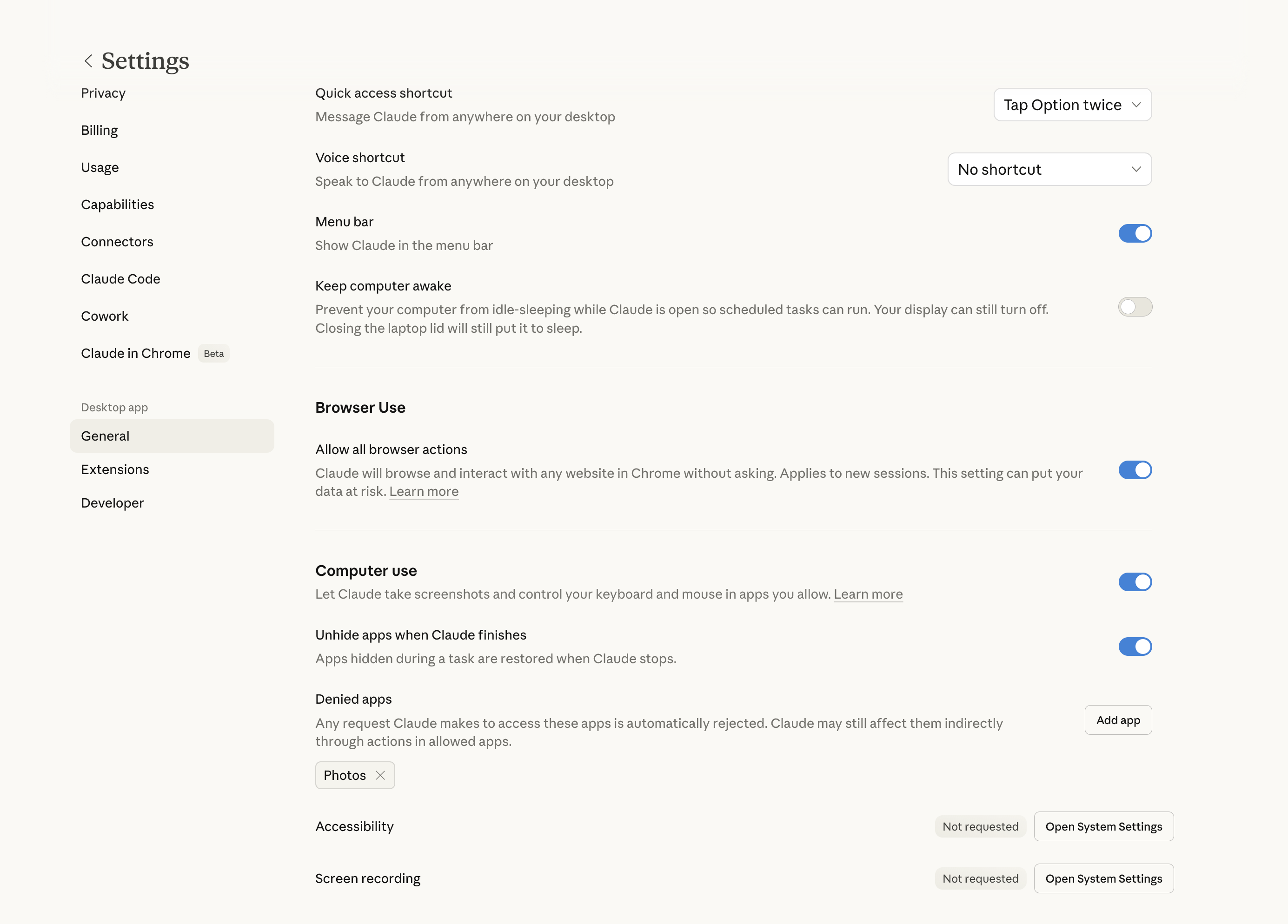
- Open Claude Desktop → Settings → enable Computer Use
- macOS will prompt for Accessibility permissions — go to System Settings → Privacy & Security → Accessibility and toggle Claude on
- Grant Screen Recording access in the same panel — Claude needs this to read content inside windows
- Install the Claude for Chrome extension — required for Claude to interact with web pages, not just see them. Without it, Claude can navigate to a URL but can’t reliably read page content or interact with web app elements.
Where this commonly goes wrong.
The Accessibility permission on macOS is sandboxed, and it can silently stop working after a macOS update or after Claude Desktop updates. If Claude seems to be running but not doing anything, go back to System Settings, remove Claude from the Accessibility list, and re-add it. That fixes the problem in most cases. If Screen Recording permission doesn’t appear in the prompt, add it manually via the + button in the Screen Recording panel.
One setup step worth taking before your first real workflow: create a dedicated Chrome profile for Claude’s use. It keeps Claude’s sessions separate from your own, prevents it from interacting with tabs you have open, and makes it straightforward to review what it did. Two minutes of setup that prevents confusion later.
How it works in practice
The loop Claude runs is: screenshot → understand → act → screenshot → understand → act. It’s navigating visually, the same way you do, which means it can handle flows a traditional script can’t — multi-step UI, dynamic pages, things that require reading context before acting. But visual navigation is also why it’s slower and more brittle than a script.
Before running any workflow, give Claude scope: which tool, which task, and what requires your approval before acting. This prompt is a better starting point than a bare instruction:
I want you to help me with outreach to a list of prospects. You’ll be using Chrome and Gmail. Before sending or saving any email, show me the draft and wait for my confirmation. If you encounter something unexpected — a UI you don’t recognize, a field you can’t read, an error — stop and ask me rather than guessing.
That framing gives Claude a clear task, clear tools, and a clear stop condition. Without the stop condition, Claude will make judgment calls in ambiguous situations, and some of those calls will be wrong.
A concrete walkthrough: from zero to personalized outreach
This walkthrough starts further back than most — before you have a list at all. You give Claude your product and your target audience; it builds the prospect sheet from scratch, enriches it, and drafts the outreach.
Step 1: Build the prospect list from LinkedIn.
Open a blank Google Sheet in Chrome. Then ask Claude:
I’m building an outreach list for [your product — one sentence on what it does and who it’s for]. Open LinkedIn and search for people who fit this profile: [describe the role, seniority, industry, or company type you’re targeting]. For each relevant person you find, add a row to the open Google Sheet with columns: Name, Company, Role, LinkedIn URL. Aim for 20 to 25 people. Pause after every tenth row so I can check the list before you continue.
Claude opens LinkedIn, runs searches, reads profiles, decides who fits, and populates the sheet row by row. You review in batches, remove anyone who doesn’t fit, and let it continue. What you end up with is a list Claude assembled based on your actual ICP — not a CSV you exported from a tool and forgot to clean.
Step 2: Enrich with targeting context.
With the list populated, ask Claude to add two columns that will carry the rest of the workflow:
For each person in the sheet, add two columns. Column E: “Why target” — in one sentence, why does this person fit the product I described? What about their role or company makes them relevant? Column F: “Background” — a 2 to 3 sentence profile of this individual: what they likely focus on, any notable context from their LinkedIn or recent activity, anything that would help write a relevant outreach message. If a row already has content in column F, skip it — don’t regenerate. Work through rows 2 to 25. Pause every fifth row.
The “Why target” column forces Claude to articulate its reasoning. You’ll catch mismatches here — someone who looked right by title but works in a context where your product doesn’t apply. Correct them before the outreach step, not after.
The “Background” column is the one to preserve. It’s the expensive research — LinkedIn profiles, recent posts, company context — synthesized into something directly usable for writing. The skip condition (if column F already has content, don't regenerate) means this column accumulates over time. Run the same sheet next quarter with new rows added and Claude skips the contacts it already profiled.
Step 3: Draft personalized outreach.
With the sheet enriched, shift to Gmail:
Open Gmail. For each person in the sheet, draft a short outreach email — 4 to 5 sentences — using the “Why target” and “Background” columns as context. Use [your reason for reaching out] as the through-line. Before creating each draft, show me a preview in the chat and wait for my go-ahead. Once I confirm, save it to Gmail drafts. Don’t send anything.
Claude opens Gmail, composes each email drawing on the targeting rationale and the background profile, previews it to you in the conversation, waits for your confirmation, then saves the draft. You end up with drafts that are personalized because the research was genuine — and because Claude had to articulate why each person was worth reaching out to before it wrote a single word of the email.
Two things worth adding to every outreach prompt. Left to defaults, Claude writes long. For cold email, three to four sentences and under a hundred words is the right target — Claude will comfortably write three times that without a constraint. Be explicit: “maximum 4 sentences, under 100 words.”
Platform limits are the second thing Claude has no awareness of unless you specify them. A LinkedIn connection request note caps at 300 characters. InMail has a different ceiling. If Claude drafts directly into a LinkedIn compose window and the message runs over, the field truncates silently — Claude won’t notice. The fix is one line in the prompt:
Draft a LinkedIn connection request note for each person — maximum 250 characters, plain text, no line breaks. Show me each one before submitting.
The same applies to any platform with a hard ceiling: InMail, Twitter DMs, SMS, subject lines. Claude will respect a constraint you give it; it won’t infer one from the interface.
One more: tell Claude explicitly what to do when it hits a problem mid-batch. Without instruction, it may try to navigate around a login wall or a rate-limit notice quietly, while you’re not watching. Adding “if anything prevents you from completing a step, stop on that row and tell me before continuing” prevents the failure mode where Claude has been stuck on row 14 for three minutes and the batch appears to be running fine.
What else this applies to
The prompts from both steps above are reusable — save them as a Mac Shortcut or TextExpander snippet and the next batch starts at step one with a new list, not from zero.
The same structure — prepare, then execute with approval — applies across most repetitive marketing work.
The example I use regularly after calls: CRM updates. After finishing a conversation, I open HubSpot and tell Claude:
Find the contact for [name]. Update the last contact date to today, add these notes to the activity log: [paste the notes I just took], and create a follow-up task for next Thursday at 10am.
Claude navigates to the contact, makes the three updates, and confirms. The whole thing takes four minutes instead of the eight it would take me switching between the notes app and the CRM. More importantly, it happens — rather than being deferred until the end of the day when the details have faded.
Another one that compounds quickly: LinkedIn comment management. After publishing a post, I ask Claude to open LinkedIn, find the comments on my last few posts, identify which ones haven’t had a response, and draft a short reply for each. Claude previews each reply before posting. I approve or edit; it handles the navigation. The replies that might otherwise sit unanswered for a day go out the same morning — and none go out without me seeing them first.
The pattern is the same each time: give Claude the tools, the task boundary, and a clear stop condition. Verify before it counts.
The limits
Speed is the one you’ll feel first. The screenshot loop is deliberate, not instant. A workflow touching ten UI elements might take several minutes. For a batch of twenty prospects, plan for thirty to forty minutes of Claude working. It’s not running in the background at machine speed — it’s navigating the same way you would, just without the context switching cost on your end.
UI fragility is the one that breaks flows. Claude reads what it sees in a screenshot. A login prompt, a cookie banner, an overlay, a layout change after a product update — any of these can stall it mid-task. Claude will usually pause and ask when something unexpected appears, which is the right behavior. The one place this fails: if you’ve set an overly permissive prompt that doesn’t include a stop condition, Claude may try to navigate around a problem and make it worse. The stop-and-ask instruction in the setup prompt isn’t optional.
Dense interfaces are harder to read accurately. Spreadsheets with small text, CRMs with many fields, dashboards with overlapping elements — Claude can misread these. Test any new workflow on three or four rows first, verify the output, then scale up.
Context Claude doesn’t have: your relationship history with a prospect, the nuance from a previous conversation, whether a company is in a sensitive situation. The research step surfaces publicly visible information. Everything else has to come from you, either in the initial prompt or in your review of the draft.
What to avoid
Unsupervised access to consequential accounts. Don’t enable computer use on your primary email or CRM, set it a task, and leave the room. The approval checkpoint in the walkthrough above is the mechanism that keeps you accountable for what goes out under your name. Remove it and you’re delegating authorship, not just execution.
Using volume as a substitute for relevance. Computer use can send a lot of emails quickly. That’s not the value proposition. The value is that you can send twenty genuinely researched, genuinely personalized emails in an hour instead of three hours — not that you can send two hundred emails you couldn’t have written yourself. The second use case is spam with better tooling.
Blank-check access. “Handle my inbox” is not a task. It’s a blank check. Be specific every time: which tool, which rows, which contacts, and where to stop. The more specific the scope, the more recoverable the mistakes.
Automating what signals effort. Warm follow-ups, responses to personal introductions, anything where the relationship itself is what matters — these shouldn’t be automated. Not because Claude can’t draft them competently, but because the act of writing them is part of what they communicate. Use computer use to clear the administrative work so you have more attention for these, not to replace them.
Compliance considerations
A few things worth knowing before running any of these workflows at scale.
LinkedIn’s Terms of Service prohibit automated data collection. The walkthrough above has Claude navigating LinkedIn profiles and extracting information into a spreadsheet. LinkedIn explicitly bans automated scraping in their User Agreement — this applies whether the automation is a script or an AI agent clicking through the interface. For occasional, small-scale use the risk is low; for systematic prospecting at volume, it’s a real exposure. Verify their current ToS before building a repeatable workflow around it.
GDPR and equivalent privacy laws apply to prospect data. When Claude populates a spreadsheet with names, roles, companies, and synthesized profiles of individuals, you’re creating a personal data dataset. Under GDPR, collecting and storing that data requires a lawful basis — legitimate interest being the most common for B2B outreach, but one that requires documentation. The “Background” column in particular, which persists across sessions, functions as a personal data record. If you’re targeting individuals in the EU: know what data you hold, have a retention policy, and be able to respond to subject access requests.
Cold email has its own legal requirements. CAN-SPAM (US), CASL (Canada), and GDPR (EU) each set rules for commercial email — sender identification, a working opt-out mechanism, no deceptive subject lines. AI-drafted emails don’t exempt you from any of these. Make sure the drafts Claude produces include what the law requires, not just what reads well.
The approval step is your compliance checkpoint. The human review between every draft and every send is also where you catch a message that makes a claim you can’t substantiate, uses data that shouldn’t have been collected, or targets someone who has previously opted out. Don’t remove it in the name of speed.
On ethical use
When Claude drafts text and you send it, the sending is yours. When Claude navigates to Gmail and creates the draft, the gap between “Claude helped me” and “Claude did it” shrinks.
The version I’m comfortable with: Claude handles research, formatting, navigation, and the mechanical execution of the workflow. I review every outreach before it goes out. The personalization is accurate, the tone reflects how I’d actually write, and the email is worth the recipient’s time. The approval step is not a rubber stamp — it’s where I verify that what Claude produced is actually what I’d send.
The version I’d avoid: using computer use to generate volume as a substitute for relevance, or using the appearance of personalization to simulate a relationship that doesn’t exist. The technology makes it easy to send more. That’s not the same as having more worth saying.
The unfair advantage
The asymmetry worth understanding: with text generation, the worst case is output you don’t use. With computer use, the worst case is action taken in your name that you didn’t intend. That asymmetry is precisely why the approval discipline matters — and it’s also what creates the genuine advantage for people who do it well.
The professionals who get disproportionate value from this aren’t the ones automating the most. They’re the ones who’ve figured out which tasks are worth automating — the research, the CRM updates, the draft creation — and stay personally in the loop on everything that carries relationship weight. They’re spending their attention where it compounds, and clearing the rest.
Computer use shifts the cost of execution low enough that the bottleneck becomes clarity — knowing what to do and who it’s for — rather than time. That’s always been the more interesting constraint. Now it’s the only one left.